
u.trust LAN Crypt for Windows · 14.0.0 · English
Installation and upgrade
PDF herunterladenHerstellerquelleImportierter Dokumentationsstand – bitte Produktversion beachten.
Kapitel: Installation and upgrade
Note
The LAN Crypt Cloud Client requires a direct connection to auth.lancrypt.com, or the use of a transparent proxy. An explicit proxy is not yet supported.
u.trust LAN Crypt Client requires at least Windows 10 (x64), from version 1809 (LTSC).
If you install both components of u.trust LAN Crypt, the Admin Console and the Client Application, on the same computer, both must be of the same version.
Step 1: Open the client installation file that you received from your Security Officer by double-clicking on it.
Step 2: Click Next.
The License Agreement dialog is displayed.
Step 3: Select I accept the license agreement in the License Agreement dialog. Otherwise, it is not possible to install u.trust LAN Crypt!
Step 4: Click Next.
The Destination Folder dialog is displayed.
Step 5: Select where to install u.trust LAN Crypt.
Step 6: Click Next.
The Select Installation Type dialog is displayed.
Step 7: In this dialog, you select which components of u.trust LAN Crypt Client are to be installed.
-
Typical: Installs the most commonly used application functions of u.trust LAN Crypt Client.
-
Complete: Complete client installation, including the Client API.
-
Custom: Lets the user select the different components.
Step 8: Select Custom and click Next.
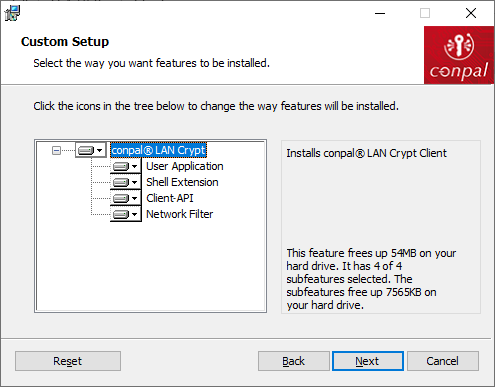
The following components can be installed:
User Application
Installs the u.trust LAN Crypt user application, see User application.
Note
- Compared to version 3.97 of the u.trust LAN Crypt Client, the installation of the user application cannot be excluded. It will be installed in any case.
Shell Extension
Installs the u.trust LAN Crypt Explorer Extensions.
u.trust LAN Crypt adds entries to the Windows Explorer which allow the initial encryption of files and folders, the explicit encryption / decryption of files and folders and makes it easy for you to check the encryption state of your data. These entries are displayed in the context menus of the drives, folders and files. In addition, an Encryption information tab is added to the Windows Propertiespage.
Client API
Used to access Utimaco File Encryption functionality through an API.
The Client API is supported exclusively for tenants that have completed a migration from the LAN Crypt On‑Premises Administration to the LAN Crypt Cloud Administration.
For tenants using LAN Crypt Cloud without a prior on‑premises migration, the Client API is not available. Customers interested in this functionality may contact Utimaco Support to submit a feature request.
Note
You must install the Client API to enable DLP products to access data using the u.trust LAN Crypt Client API.
Only the API command line tool (SGFEApi) is supported. The COM API is not supported.
Network Filter
Used to access Utimaco File Encryption functionality through an API.
Step 9: Select which components are to be installed and click Next.
Note
- Please note that u.trust LAN Crypt from version 4.1.0 no longer supports legacy filter drivers. All encryption and decryption operations are performed exclusively via the new more up-to-date and future-proof mini filter driver technology.
Step 10: Check your entries again and click Next to start the installation.
Step 11: If the installation is successful, a dialog appears in which you can click the Finish button to complete the installation process.
Note
- To apply all settings, you must restart the computer.
Unattended installation
Unattended installation means you can install u.trust LAN Crypt automatically on a large number of computers.
The Install directory of your installation CD includes the .msi-file that is required for unattended installation of the client components.
Components to install
The following sections describe all the components that are to be installed and the way they have to be specified for an unattended installation.
The keywords ( Courier , bold ) represent the way the components have to be specified under AddLocal= when an unattended installation is run (see Optional Parameters). Component names are case-sensitive!
Example:
AddLocal= ALL installs all available components.
Command line syntax
To perform an unattended installation, you must run msiexec with certain parameters.
Mandatory parameters:
/I
Specifies the installation package to be installed.
/QN
Installation without user interaction (unattended setup).
Name of the .msi-file: LCClient.msi
Syntax:
msiexec /i \<path\>\LCClient.msi /qn AddLocal=\<component1\>,\<component2\>,...
Optional parameters
/Lvx\* \<path + filename\>
Logs the complete installation procedure in the location specified under \<path + filename\>.
AddLocal=
AddLocal= ALL
Installs all available components.
AddLocal= LanCrypt
Does not install any of the available components.
AddLocal= UserApplication
Installs the u.trust LAN Crypt user application.
AddLocal= NetworkFilter
Installs a driver that helps improve the performance of network accesses.
AddLocal= ClientAPI
Installs the u.trust LAN Crypt Client API. This will be used to access Utimaco File Encryption functionality through an API.
AddLocal= ShellExtensions
Installs the u.trust LAN Crypt Explorer Extensions.
u.trust LAN Crypt adds entries to the Windows Explorer which allow the initial encryption of files and folders, the explicit encryption / decryption of files and folders and makes it easy for you to check the encryption state of your data. These entries are displayed in the context menus of the drives, folders and files. In addition, an Encryption information tab is added to the Windows Properties page.
NOOVERLAY=
NOOVERLAY=0
Enables overlay icons for files and folders.
NOOVERLAY=1
Disables overlay icons for files and folders.
Note
- Users can enable overlay icons after installation. If the users click on Folder Options > View they can specify whether or not the file encryption status and the folder encryption status are to be displayed for their profile. The changes they make to these settings do not become effective until they log off and then log on again.
Productlanguage=
Installs the MSI language package for the u.trust LAN Crypt Client in a specific language, regardless of the existing language setting on the computer. This set language is then used for the installation itself and also for later changes by the setup wizard of u.trust LAN Crypt. The following language settings are currently supported via the installation parameter “Productlanguage=”.
Productlanguage=1031
Installs the German MSI language package for the u.trust LAN Crypt Client
Productlanguage=1033
Installs the English MSI language package for the u.trust LAN Crypt Client
Productlanguage=1036
Installs the French MSI language package for the u.trust LAN Crypt Client.
ONEDRIVE=
ONEDRIVE=1
Activates the support of Microsoft OneDrive for the respective user for which the setup is intended.
Examples:
msiexec /i C:\Install\LCClient.msi /qn AddLocal=ALL
A complete installation of u.trust LAN Crypt is performed. The program is installed in the default installation directory (\<System drive\>:\Program Files\Utimaco\u.trust LAN Crypt).
msiexec /i C:\Install LCClient.msi /qn AddLocal=UserApplication,ShellExtensions Productlanguage=1033
The installation of u.trust LAN Crypt is executed. The program is installed in the default installation directory (\<System drive\>:\Program Files\Utimaco\u.trust LAN Crypt) with the user application, explorer extensions and English MSI language package, but without the Client API.
The “.msi file” is located in the installation folder of u.trust LAN Crypt.
Note
- Please note that the installation program will be aborted if the line after the parameter “AddLocal=” remains empty or a parameter is entered incorrectly there.
Removing u.trust LAN Crypt Client
You can only remove the u.trust LAN Crypt Client if you have Windows administrator privileges.
Select Start \> _Settings_ \> _Apps_. Double click on u.trust LAN Crypt Client in the list of Apps and click on the Uninstall button. In the following dialog click again on the Uninstall button. The u.trust LAN Crypt Client is uninstalled. Restart your computer afterwards.
Note
- Sometimes the required Visual C++ runtime libraries are not (or no longer) installed on some client computers. Because of this missing component, u.trust LAN Crypt cannot be uninstalled on these computers. An error message during the uninstallation then indicates that there would be a problem with the Windows Installer package. In this case you have to install the required Visual C++ runtime libraries on the affected client computer. You can find them at the following URLs:
https://docs.microsoft.com/en-us/cpp/windows/latest-supported-vc-redist?view=msvc-170
https://aka.ms/vs/17/release/vc_redist.x86.exe
https://aka.ms/vs/17/release/vc_redist.x64.exe
After you have successfully installed the required Visual C++ runtime libraries on the client computer, it should be possible to uninstall u.trust LAN Crypt again without errors.
Note
- Encrypted files can no longer be decrypted after u.trust LAN Crypt Client has been removed.
Note
- Do not install u.trust LAN Crypt Client again immediately after you have removed it. You must reboot the machine at least once before you install it again.